Футбол
Новости
05.02.2025
Voting in LIVE mode. Manual
The current implementation of the trading terminal provides the following advantages:
- fixed coefficient/ price
- voting / betting takes place both BEFORE and DURING the event
- projected profitability
- the opportunity to buy/ sell a bet / vote, earning on the difference in the rates of coefficients / prices
- to make deferred bets
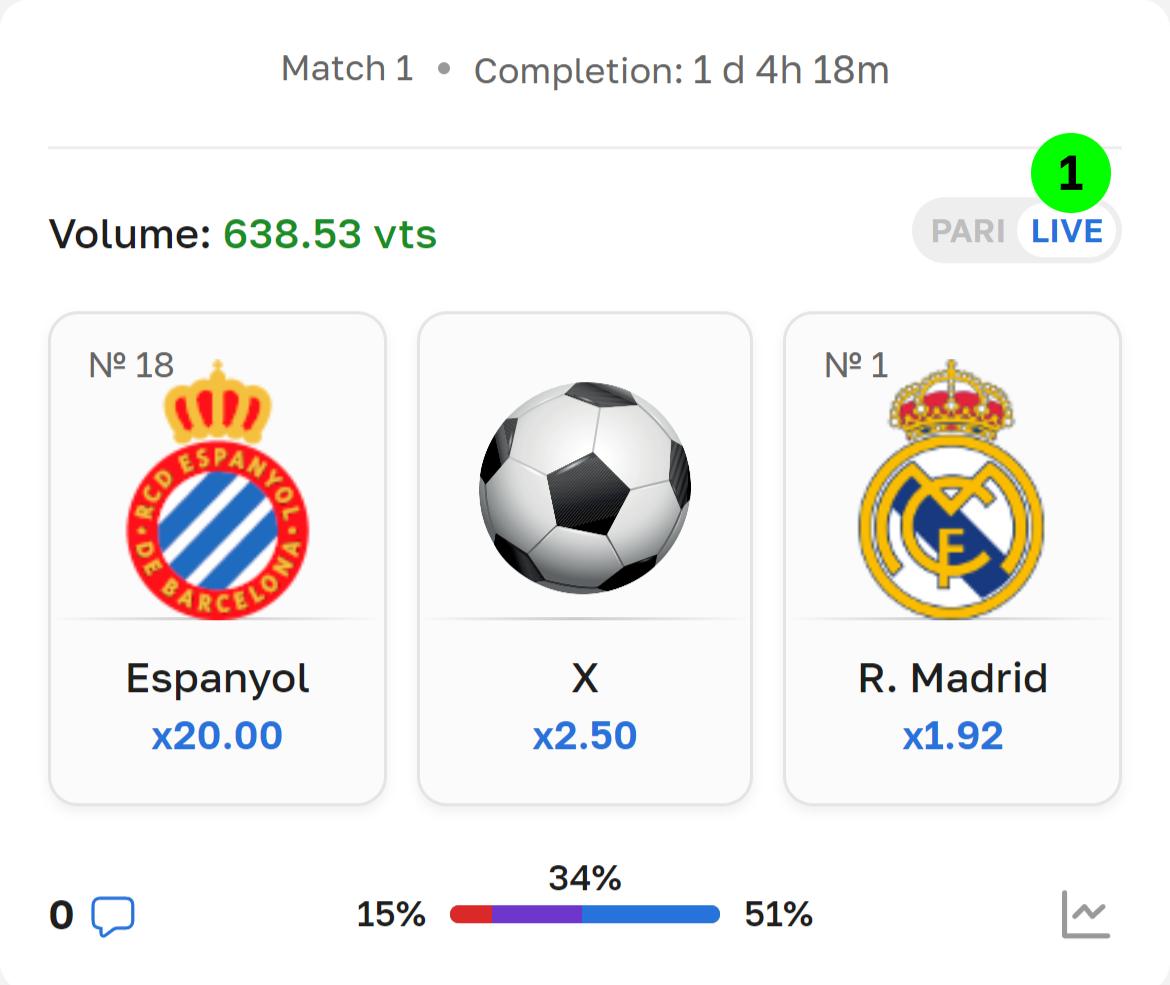
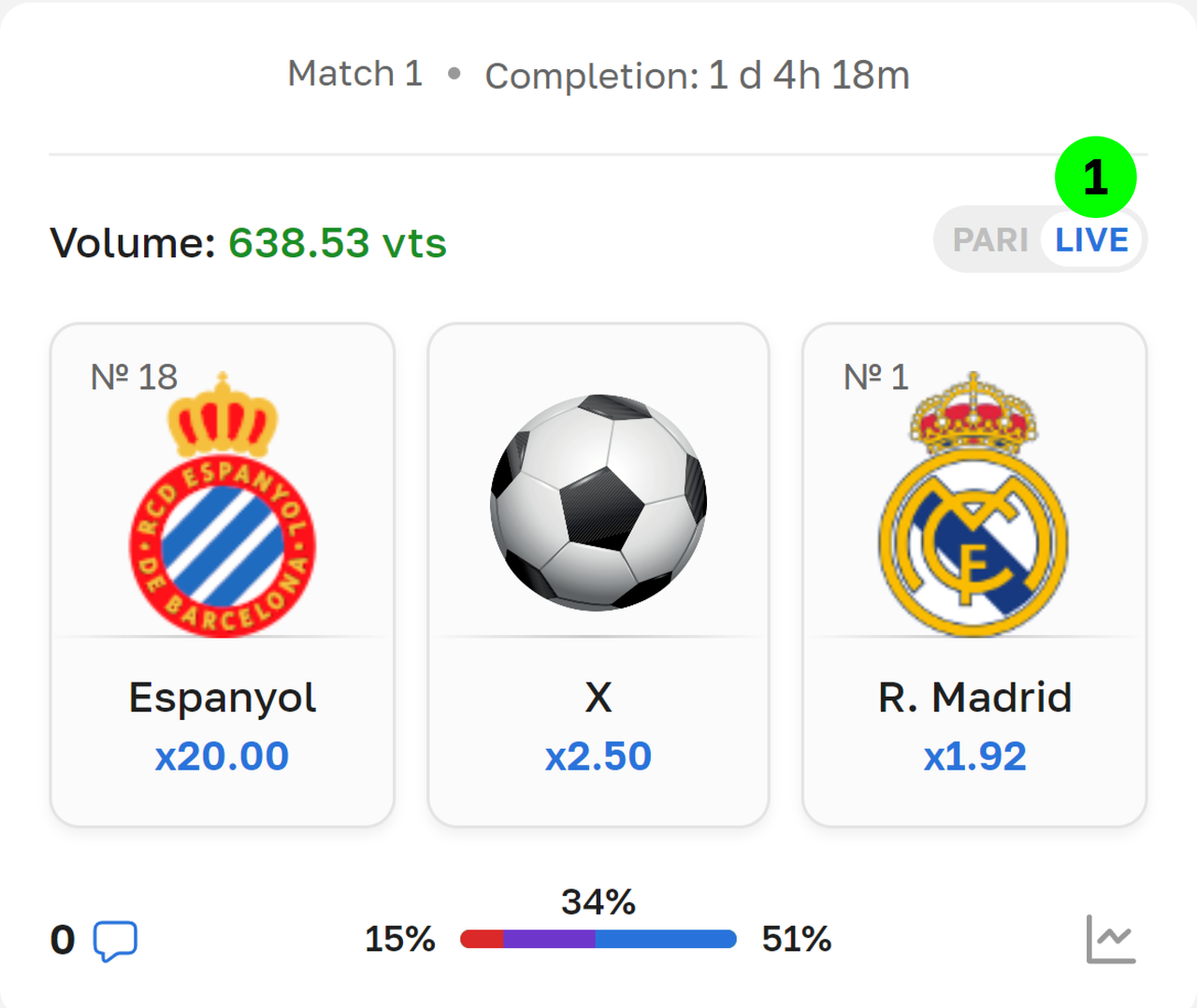
1. In the match card in the upper-right corner, select LIVE in the switch PARI/ LIVE. Click on the outcome you want to bet on. The LIVE voting terminal will open.
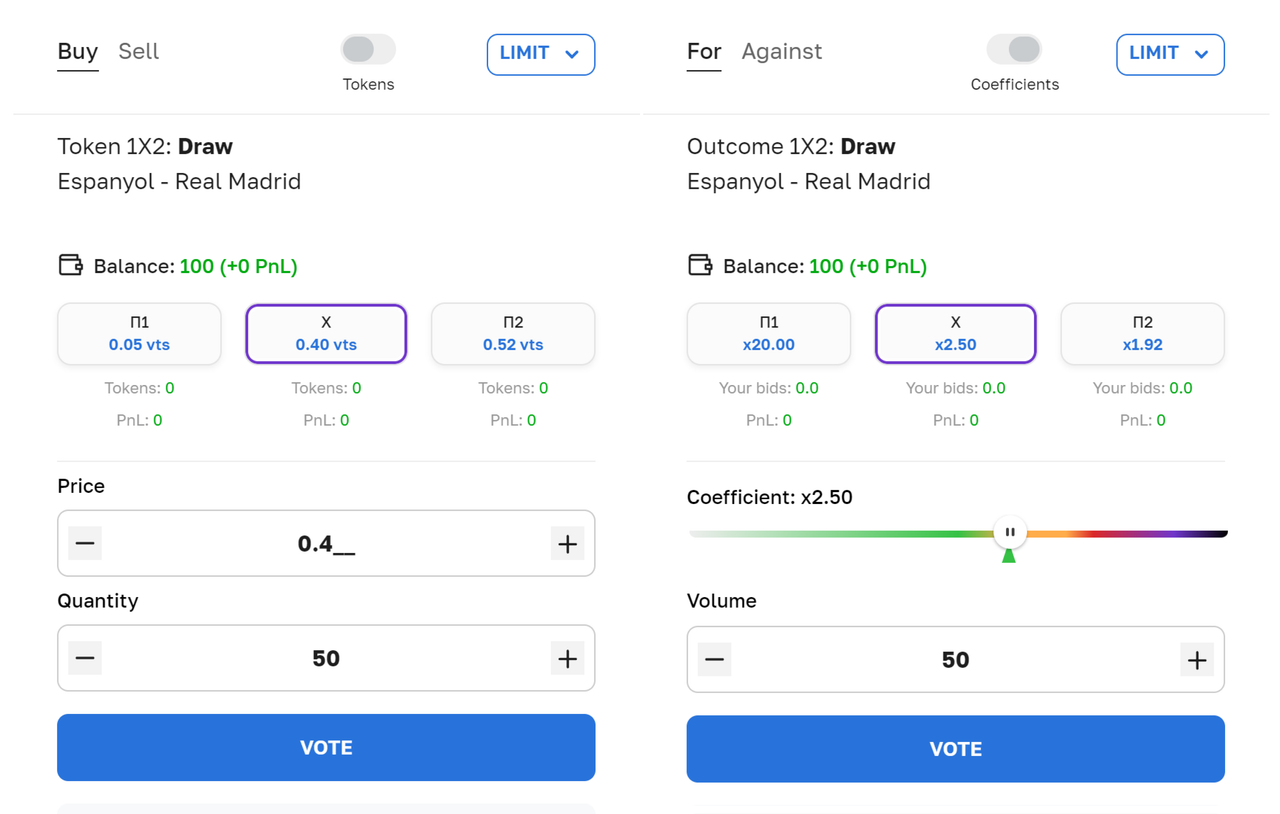
To effectively start using the new service, it would be useful to determine for yourself which platform interfaces you have previously interacted with. If you have placed bets on sports events through bookmakers, the "Coefficient" interface mode is suitable for you. If you have experience trading on exchanges, the "Price" interface mode is suitable for you.
Voting in the mode “Coefficients”
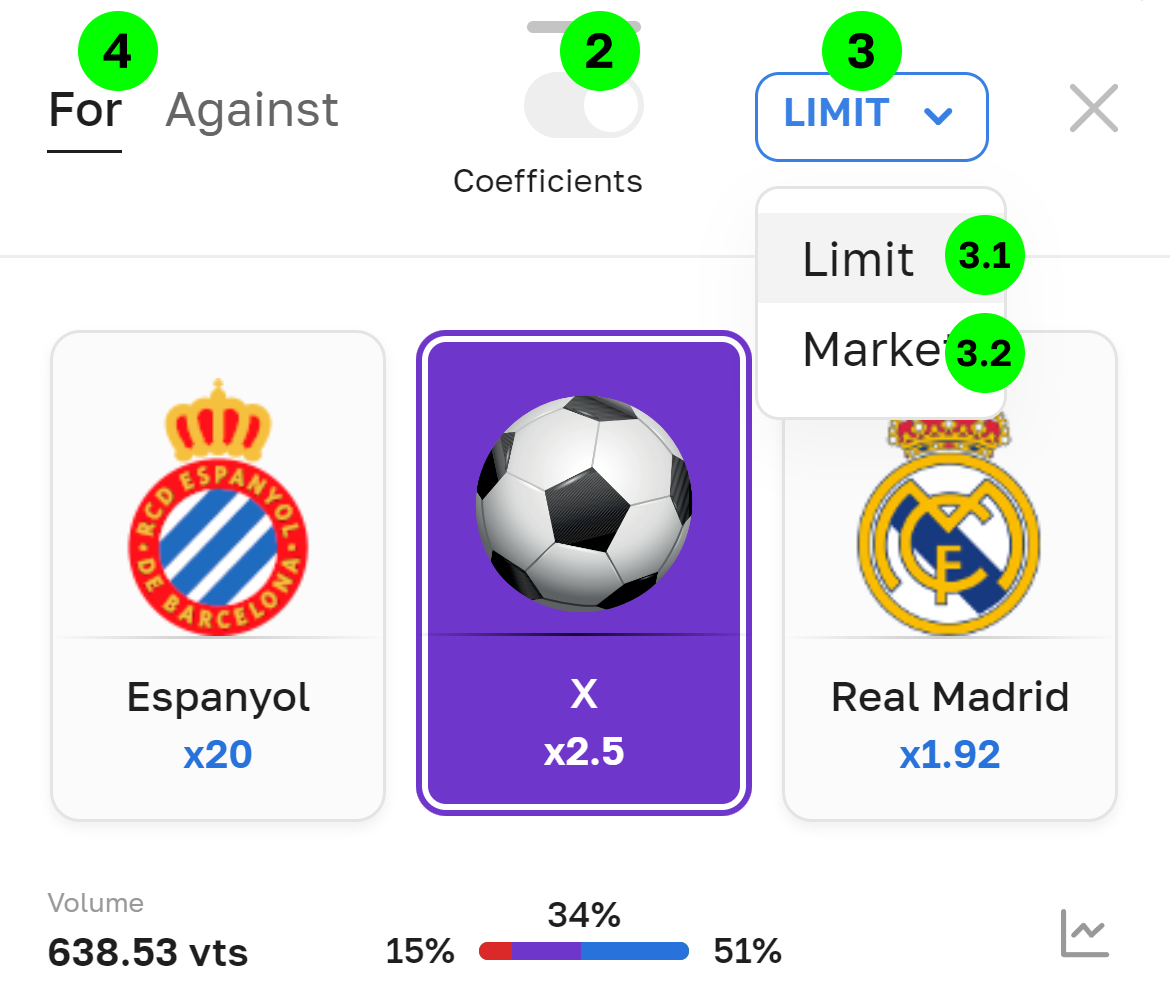
2. Display type “Coefficients"/ ”Tokens”, select the “Coefficients” mode.
3. The type of bet is the Limit/The market.
3.1. By default, this switch is in the "Limit" mode. This means that you determine the desired coefficient value yourself.
3.2. When creating a “Market” type bet, the bet will be made at the best market coefficient.
4. The tabs “For” / “ Against”. Here you need to select the type of bet. You can vote:- that the event WILL OCCUR (“For”),- that the event WILL NOT OCCUR (“Against”).For example, you want to vote that there will be a draw, or vice versa, that there will be no draw.
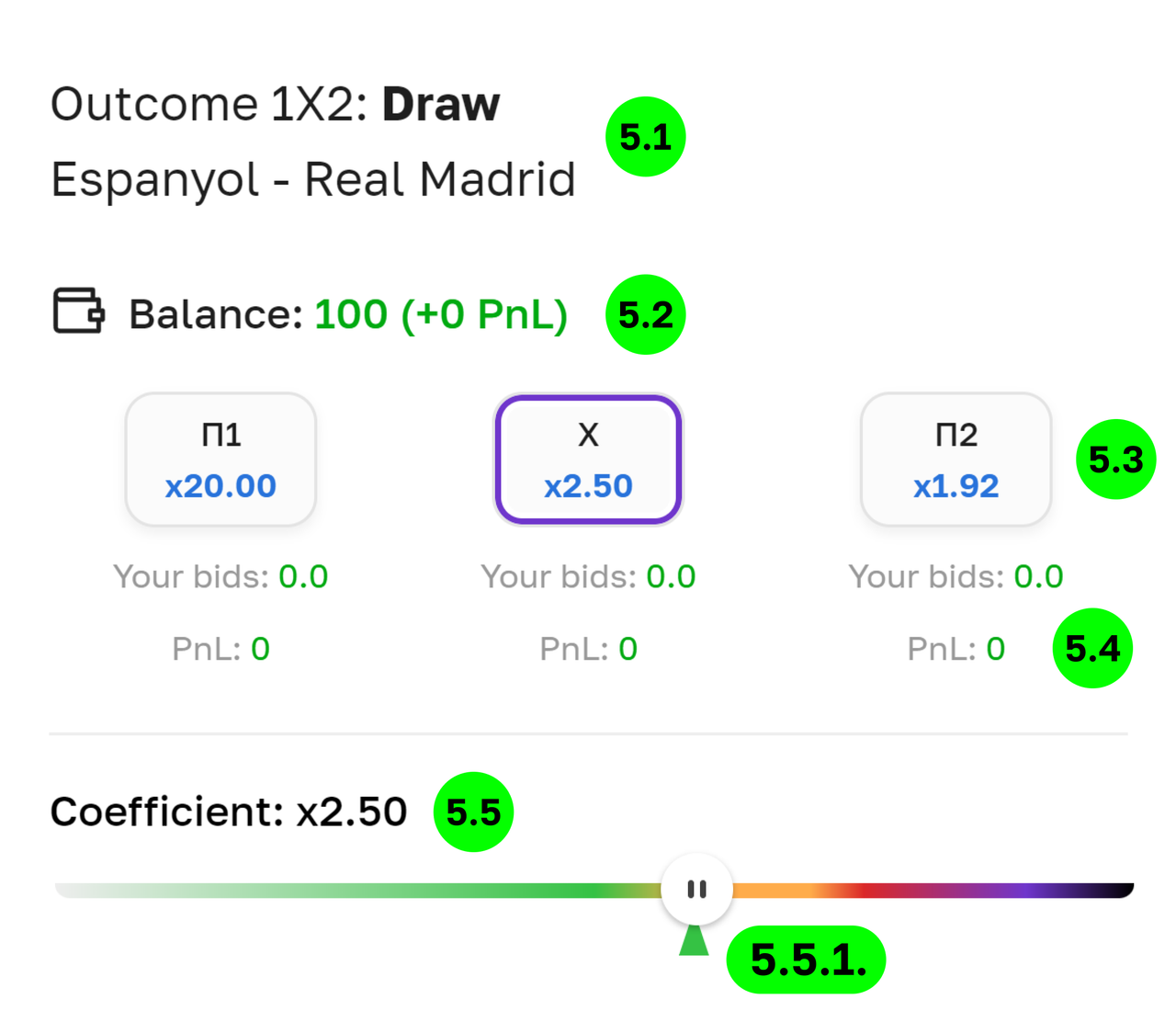
5. Information block.The following information is provided here:
5.1. In which event and on which outcome the bet is placed. The selected outcome is displayed in bold.In the screenshot example, the outcome is a Draw in the Espanyol - Real Madrid match.
5.2. Balance. Information about the total available balance is displayed here. It matches the information from your personal account (Personal account). The financial result of voting on this event (PnL) is indicated in parentheses.
5.3. Buttons for selecting the outcome of the event: P1, X, P2, which indicate the latest odds for each outcome, on which the last bets were made.
5.4. Under the outcome buttons, information about the current position — the status of the bet and the PnL.
5.5. Slider to set the coefficient value. It is designed as a thermal scale: from the value with the highest probability of betting in the light green area on the left, to the value with the lowest probability in the dark area on the right. If you choose a coefficient equal to 50, then to make a bet, you need someone to agree to bet on another outcome with a coefficient of 1.02. This situation is possible, but unlikely.
5.5.1. On the thermal scale there is a mark of the last coefficient, according to which the last bet was made.
6. We place a bet in the "Coefficients" mode
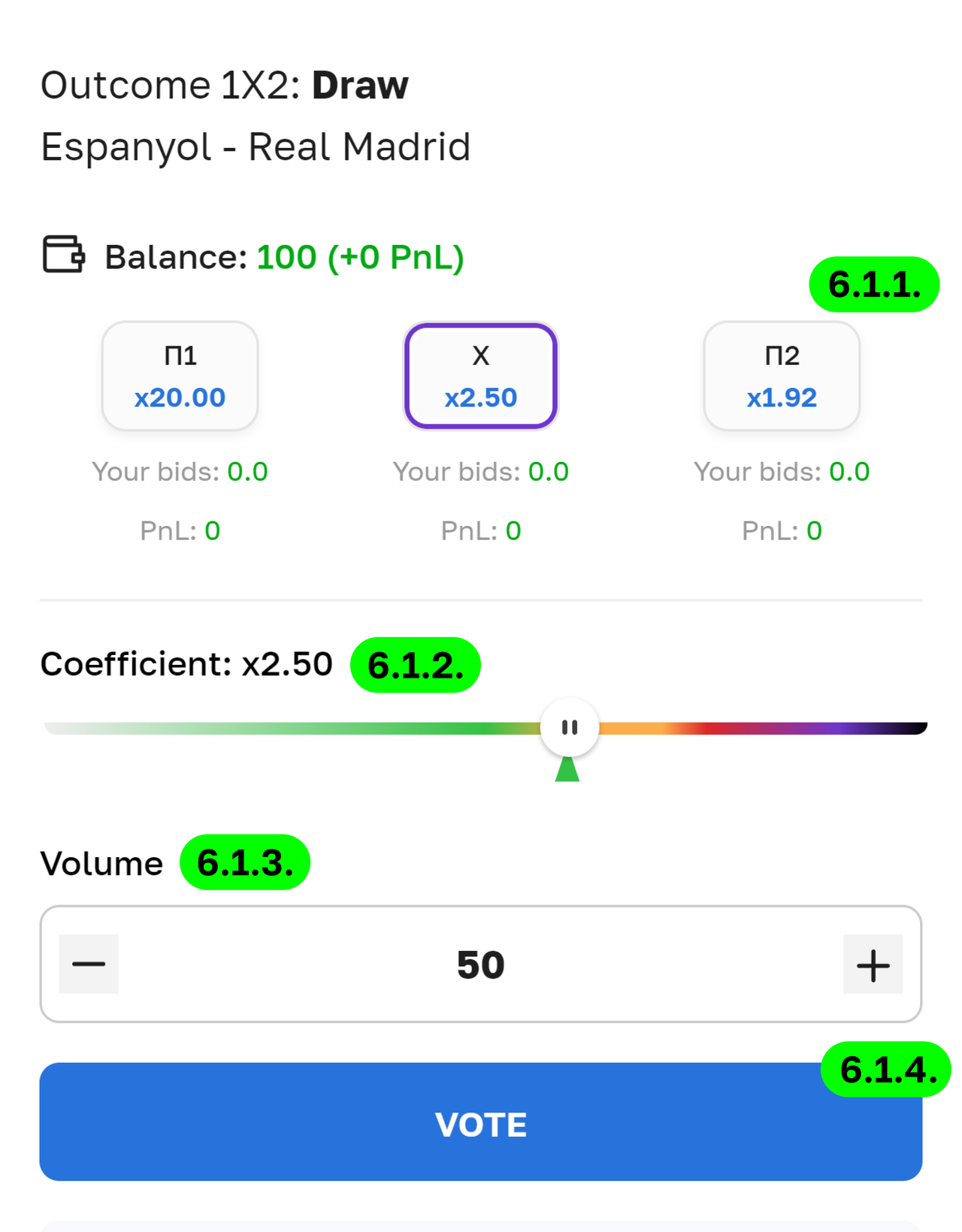
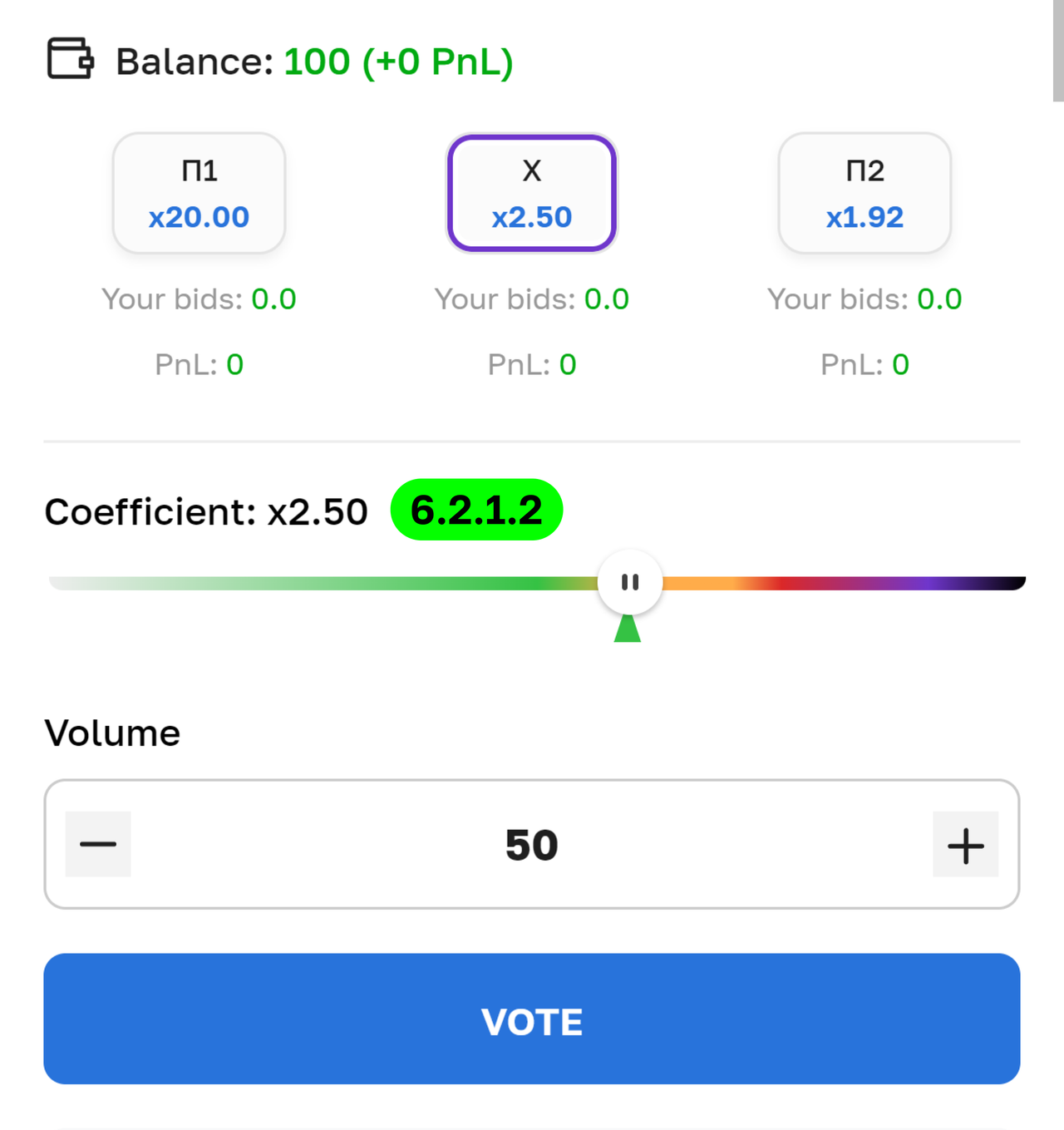
6.1. The tab “For”. By selecting this tab, you will win if the event ends with the selected result.The algorithm of actions is as follows:
6.1.1. Press the button with the outcome (P1, X, P2).
6.1.2. The field “Coefficient”
6.1.2.1. If your bet type is “LIMIT", set the coefficient value you need using the slider. The slider is made in the form of a thermal scale, that is, the color shows with which coefficient the betting will be most likely. On the left in the green area, the coefficient values are not large - the probability of making a bet large, the odds are high in the dark area on the right - the probability of making a bet is small.
6.1.2.2. If the bet type is “MARKET”, the field for entering the coefficient is not displayed. After the bet is created , the bet will be made according to the best odds offered by other users.
6.1.3. Enter the Volume (amount) bids.
6.1.4. Click the button "VOTE"A bet confirmation window will appear. Click the button "FOR" (see point 7)
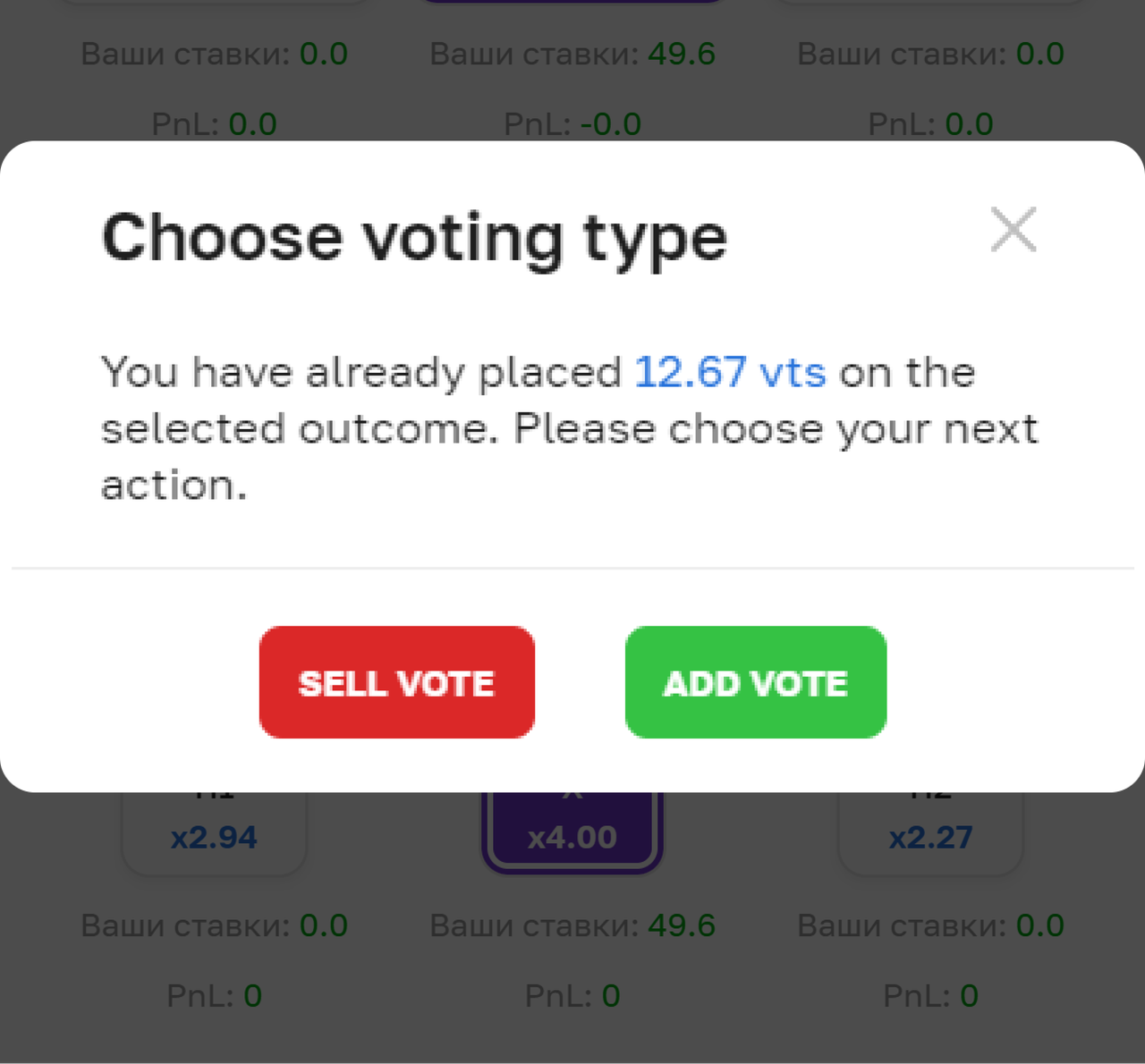
6.2. The tab “Against” . If you select this tab, a check will be performed.: “if your current bet is “For” (a Position for the chosen outcome).If you already have such a bid (a Position), a dialog box will appear with a choice of further action.:
- sell the bet
- to add the bet “Against” the chosen outcome
- click the "X" to cancel and return to the previous action
6.2.1. Sell the bid. If you already have a bet on the chosen outcome (you have a Position), then you can sell the bet.:
6.2.1.1. Sale in the Market mode: specify the "Volume", click "VOTE".A confirmation window will appear. Click "AGAINST" (see point 7)
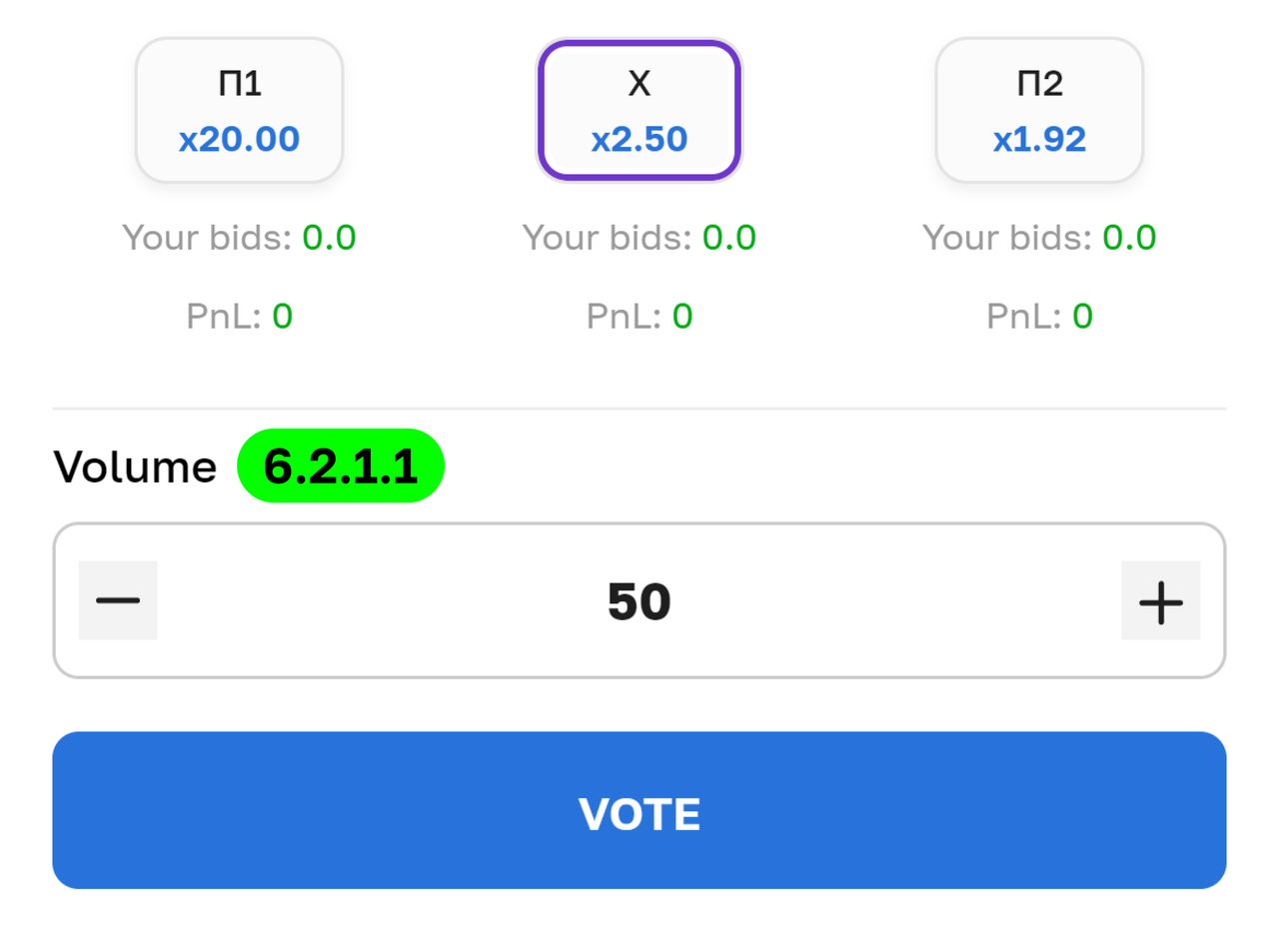
6.2.1.2. Sale in the Limit mode: specify the "Coefficient" and "Volume" and click "VOTE".A confirmation window will appear. Click "AGAINST" (see point 7)
6.2.2. Add a “Against" bet.
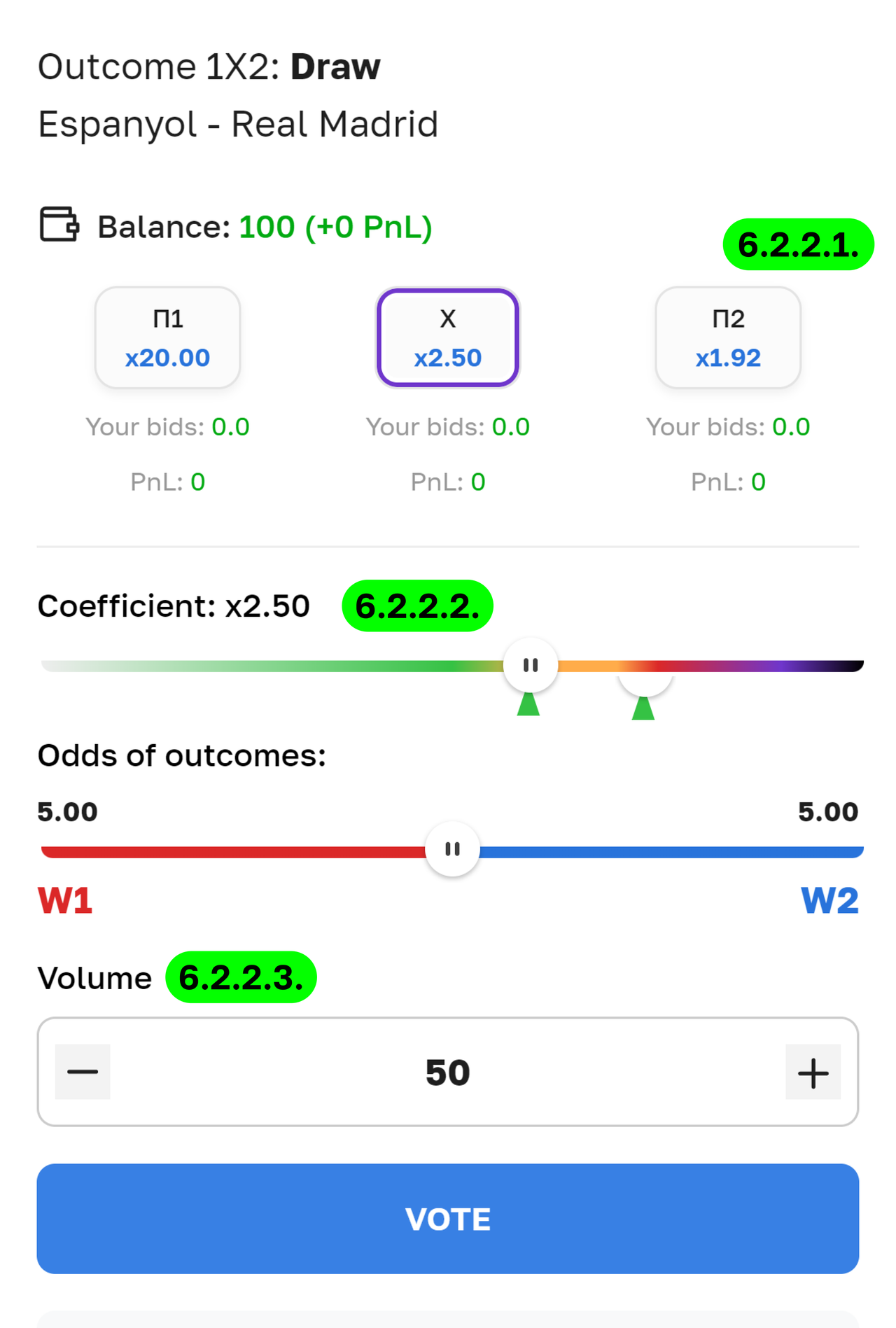
Click this button if you want to vote that the event WILL NOT HAPPEN. For example, that there WILL BE NO draw in a football match. In this case, you will bet on the victory of the 1st and 2nd teams. Voting “Against"an outcome is a bet “Double Chance”, as you will win if any of the two outcomes occur that are different from the chosen one.The algorithm is as follows:
6.2.2.1. Choose the outcome that you think is more likely to NOT OCCUR.
6.2.2.2. In the field “Coefficient” , you need to output the value of the “Double chance" - the TOTAL coefficient for two outcomes at once.In the presented interface, you are also prompted to move the slider on the thermal scale.When you have decided on the TOTAL coefficient, you can distribute below what coefficient will be on each of the two outcomes of the "Double Chance". By default, the slider on the second scale is in the middle. That is, the odds for both outcomes of the "Double Chance" are the same. If you move the slider, the coefficients will change relative to each other (that is, making one coefficient larger, the other will become smaller).
6.2.2.3. In the field “Volume” - enter the TOTAL amount of the bet on these two outcomes. The volume for each outcome is distributed automatically according to the coefficients set for them.
Click on the “VOTE" button.A window with information about the bid will appear.
Confirm the bet by clicking the button "AGAINST" (see point 7)
7. Completion of bid creation.
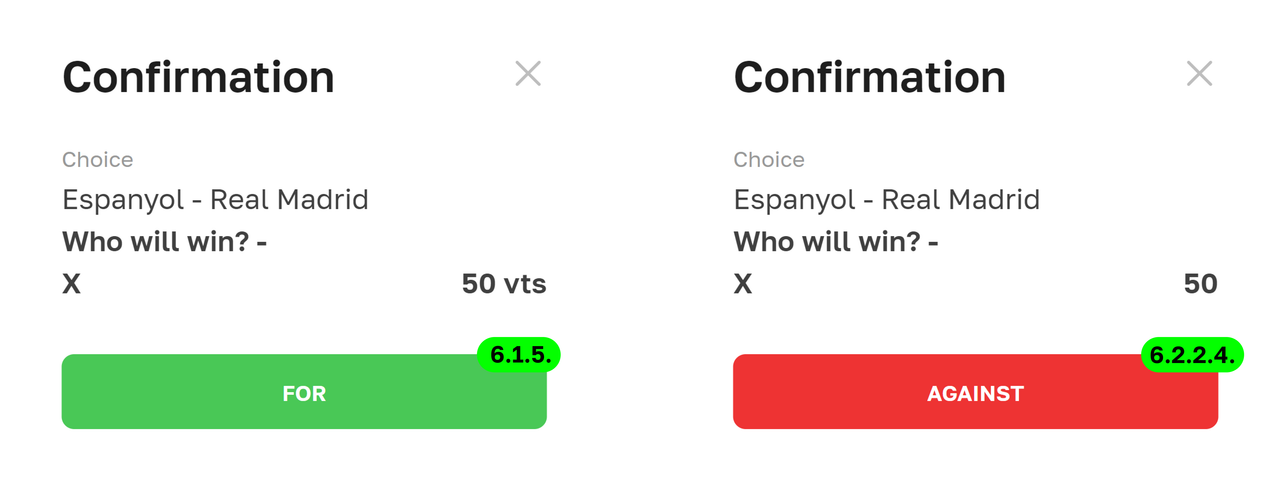
When you click on the button “VOTE” button, a window with information about the bid appears. Click on the confirmation button, depending on the selected tab.:
7.1. “FOR”
7.2. “AGAINST”
You have placed a bet, other users will be able to respond to you and then you will have a bet with them.
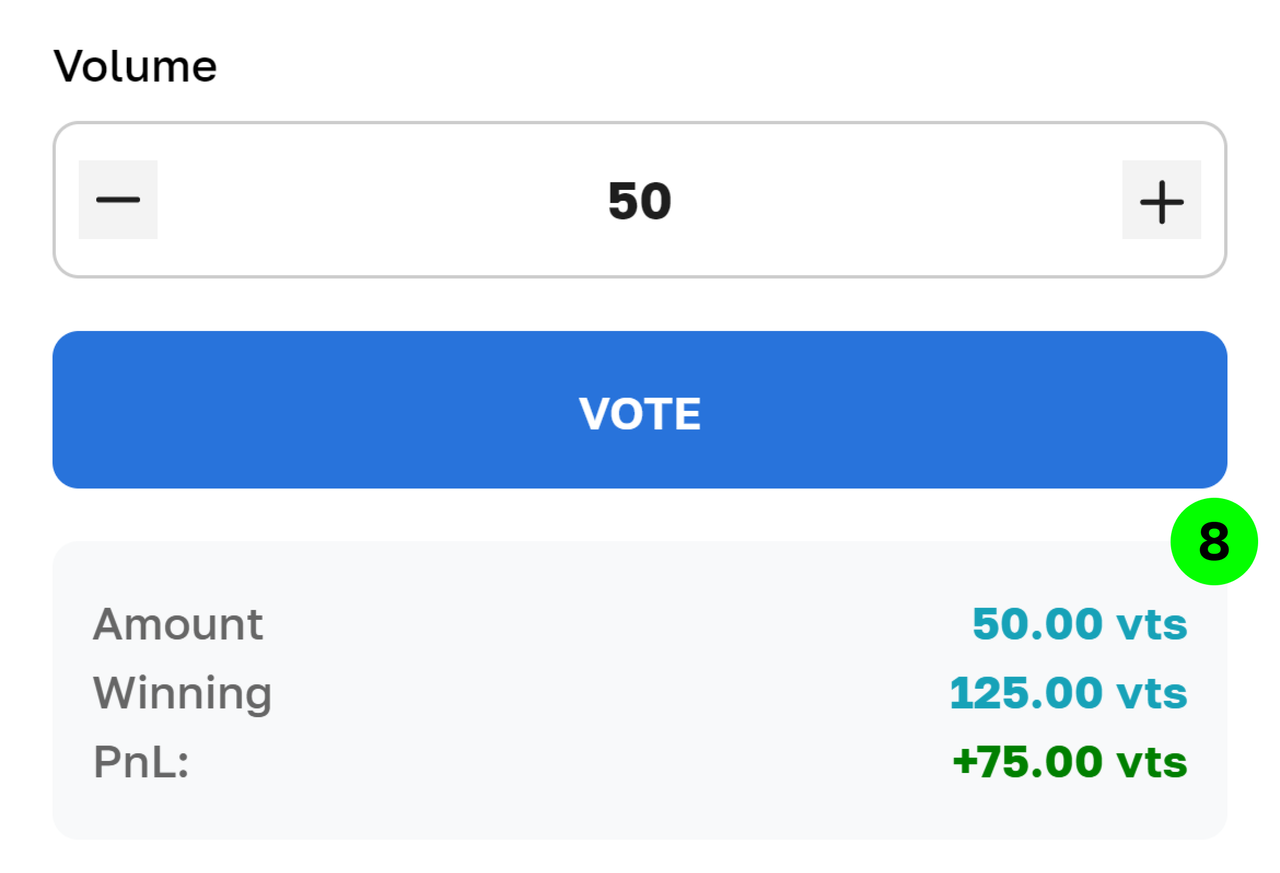
8. Under the "VOTE" button there is information about the bet being created: the "Amount" of the bet, the possible "Win" and "PnL" (profit).
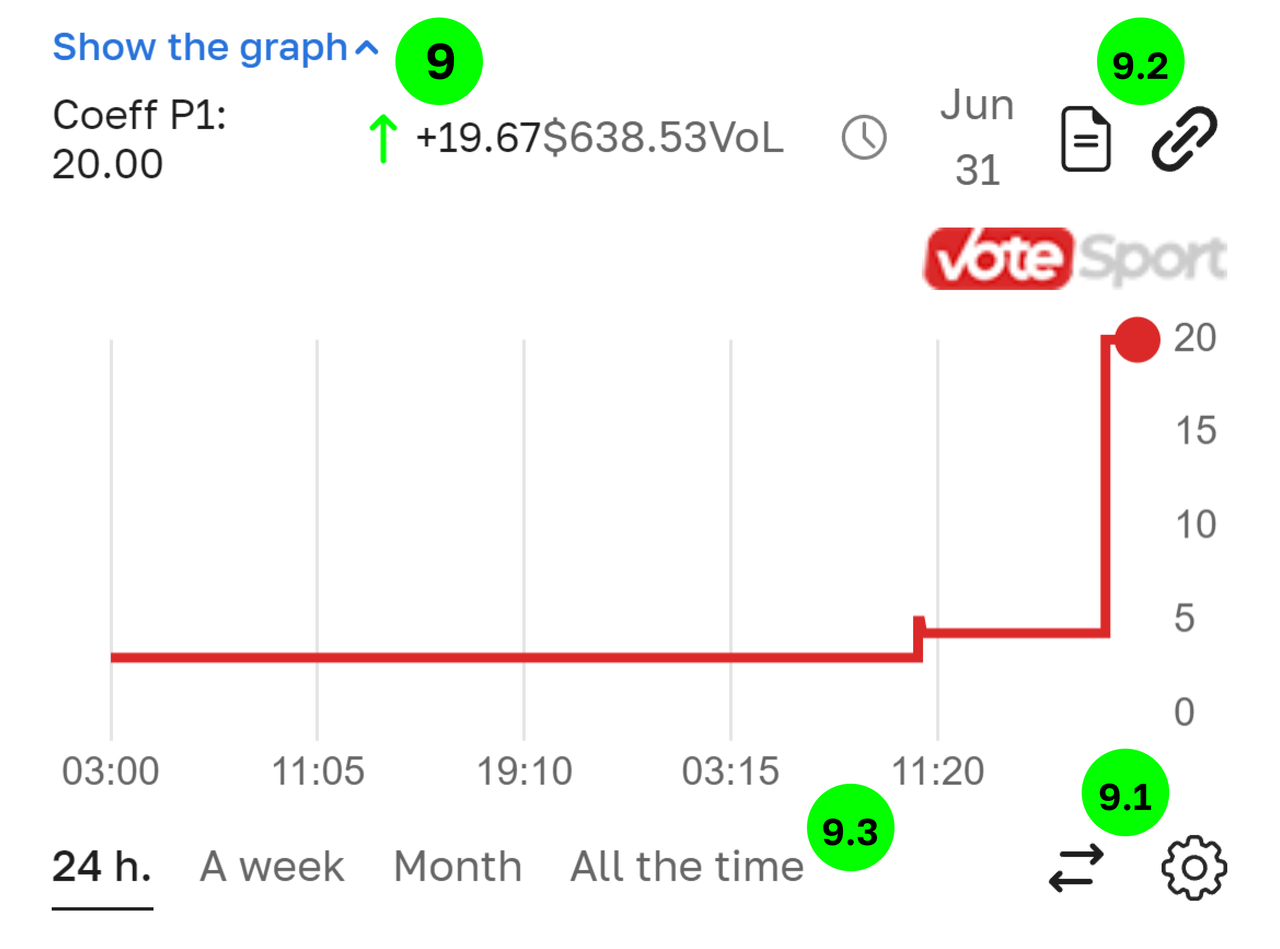
9. Schedule. By clicking on the link, you can expand/collapse the graph of the coefficient change.9.1. When you click on the gear under the graph, you can adjust its appearance.:
- Display the coefficient changes for one, two, or all 3 outcomes.
- Adjust the grid.
9.2. There is an information panel above the chart, where it is displayed by default:
- the last coefficient for the outcome is P1 (you can change the outcome via the ”gear” button on the chart).
- the change in this coefficient for the selected period,
- the volume of bets on the entire event, the date of the event creation,
- the buttons: “link to this event” and “upload the history of coefficient changes to the file".
9.3. The schedule period: 24 hours, a week, a month or all the time is selected on the bottom panel.
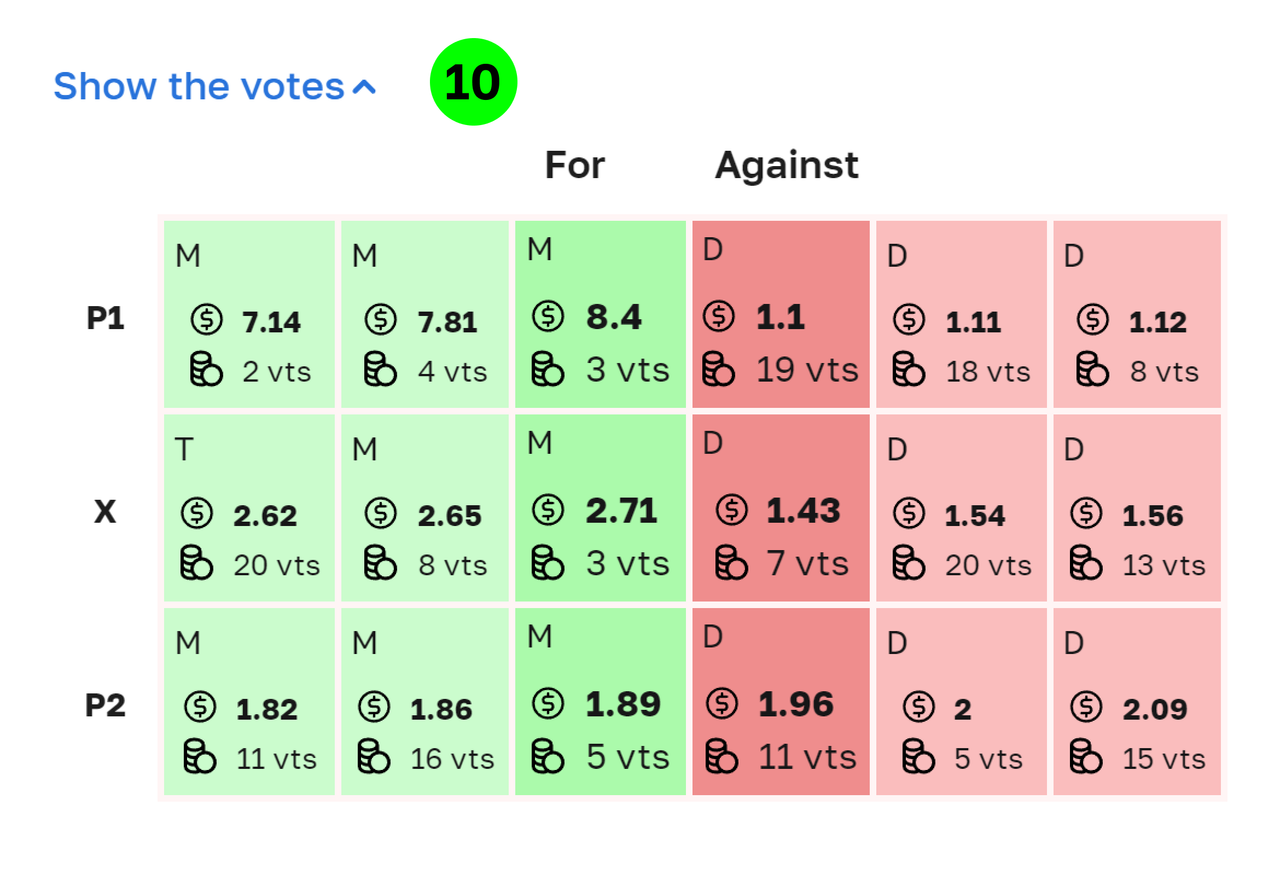
10. Show the bids. There is a glass under the chart with offers to place bets from other users. If you click on one of the cells in the terminal, you will take advantage of this offer, the parameters of the proposed bid will be displayed, and you will only need to enter the "bet amount".
You can create a bet yourself according to the instructions described above in paragraphs 1-6. This bet falls into this glass. If there is already another user's bet in it, which will allow you to make a bet, it will be concluded. Funds will be debited from your balance, and your bet will disappear from the glass.
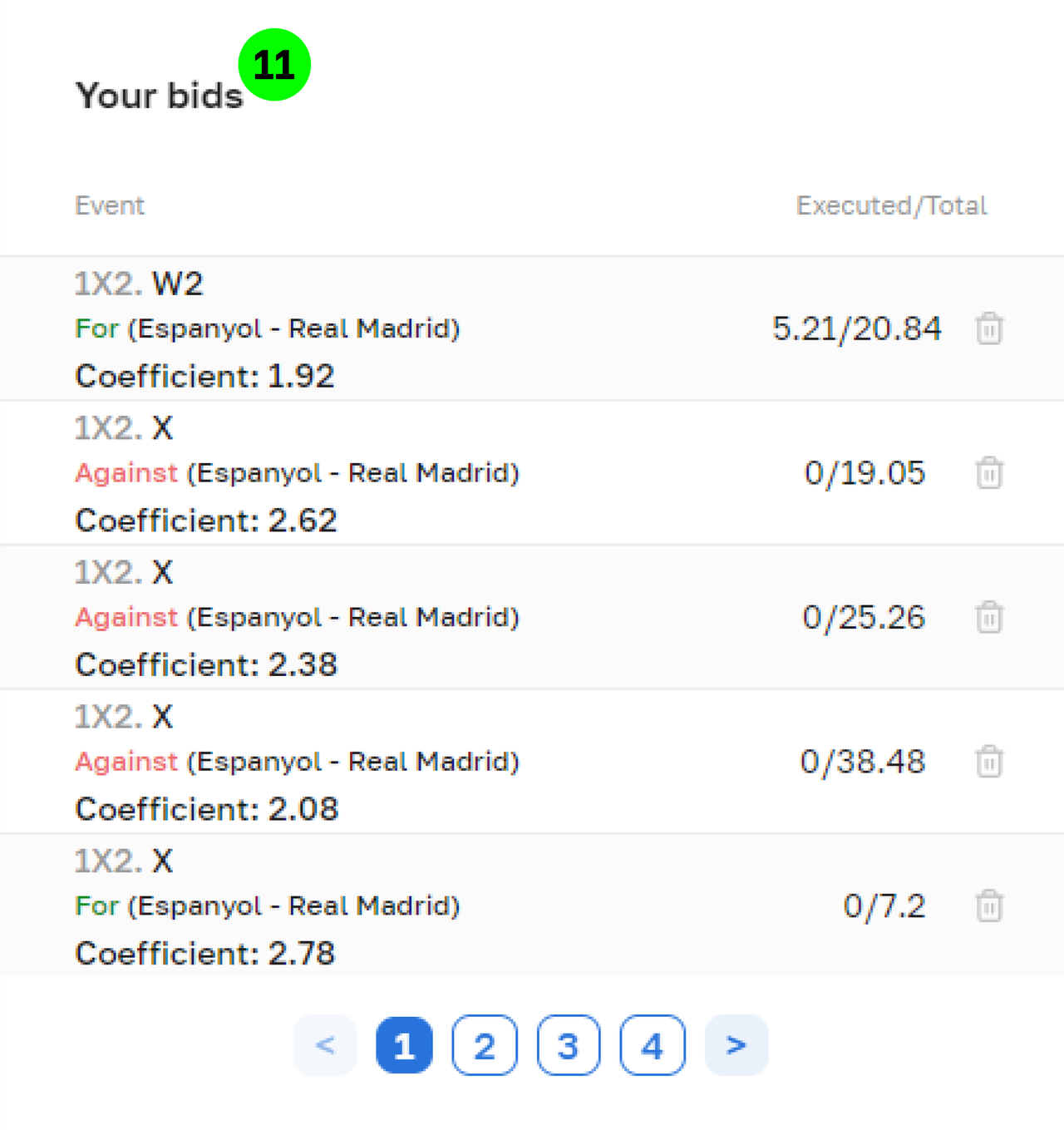
11. Your bets. Your created bets are also displayed in the “Your bets” section. Here you can check which applications you have created and to what extent they have been executed. Until they are fully executed, you can cancel them for an unfilled amount. The completed and declared volume are shown separated by slashes. For example, 10/20 means that you have created a bet with a volume of 20 vts, and at the moment it is executed at 10 vts. Without waiting for this execution, you can cancel this remaining amount, and the money will be returned to the available balance.
Voting in the mode “Tokens”
1. In the match card in the upper-right corner, select LIVE in the switch PARI/ LIVE. Click on the outcome you want to bet on. The LIVE voting terminal will open.
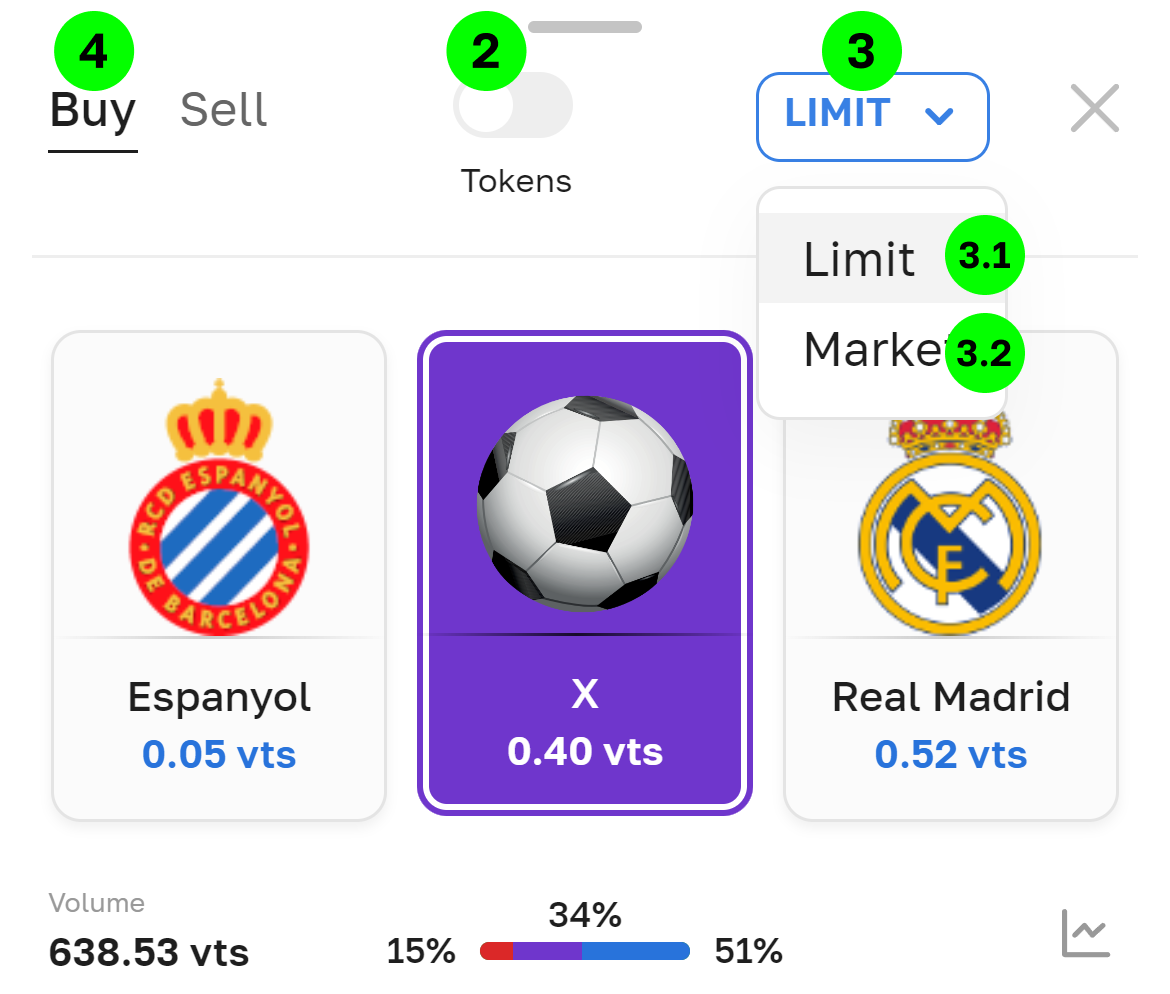
2. Display type “Coefficients"/ ”Tokens”, select the “Tokens". In this mode, you can buy and then sell synthetic tokens for each outcome of the event. The price for them can be from 0.01 to 0.99. At the end of the event, the tokens remaining in circulation will expire:
- in case of victory, each token will turn into 1 vts
- in case of defeat, each token will turn into 0
The purchase/sale of tokens takes place through placing orders.
3. The list of order type selection ”LIMIT/MARKET". By default, the selection is set to "Limit".
3.1. The "Limit" order type allows you to specify the token price.
3.3. The "Market" type of order will allow you to buy/sell tokens at the price offered by other users. The transaction will be carried out at the best possible price for you.
4. The tabs “Buy” / “Sell”. Here you choose the type of order: to buy or sell, that is, you can first buy tokens. And after you get them, you can sell them.
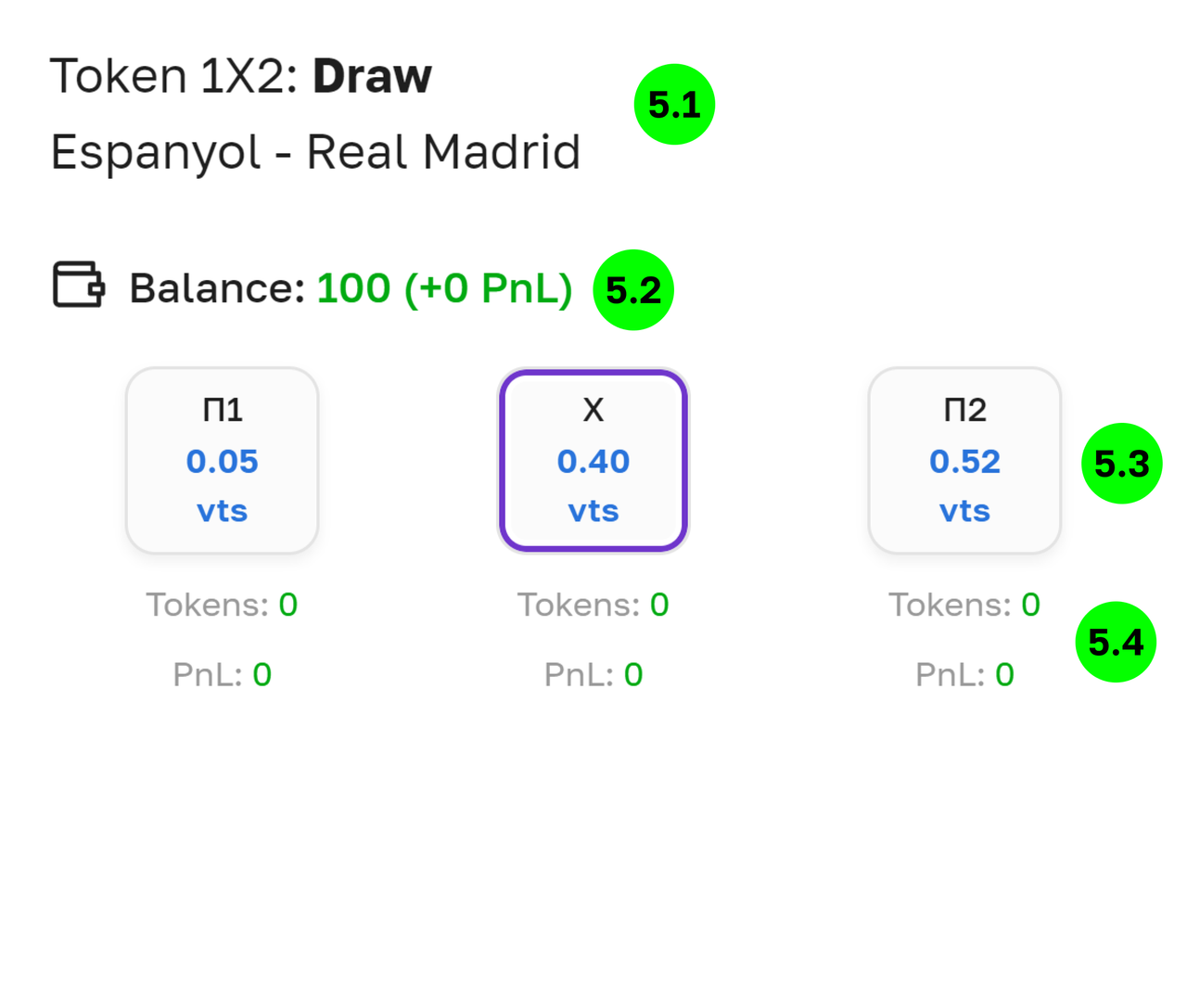
5. Information block. The following information is provided here:
5.1. In which event and on which outcome the bet is placed. The selected outcome is displayed in bold. In the screenshot example, the outcome is a draw in the Servette - Saint-Galen match.
5.2. Balance. Information about the total available balance is displayed here. It matches the information from your personal account (Personal account). The financial result of voting on this event (PnL) is indicated in parentheses.
5.3. Buttons for selecting the outcome of the event: P1, X, P2, which show the latest prices for each outcome, at which the last transactions were concluded.
5.4. Under the exit buttons, information about the current position is the number of tokens and PnL.
6. Create an order.
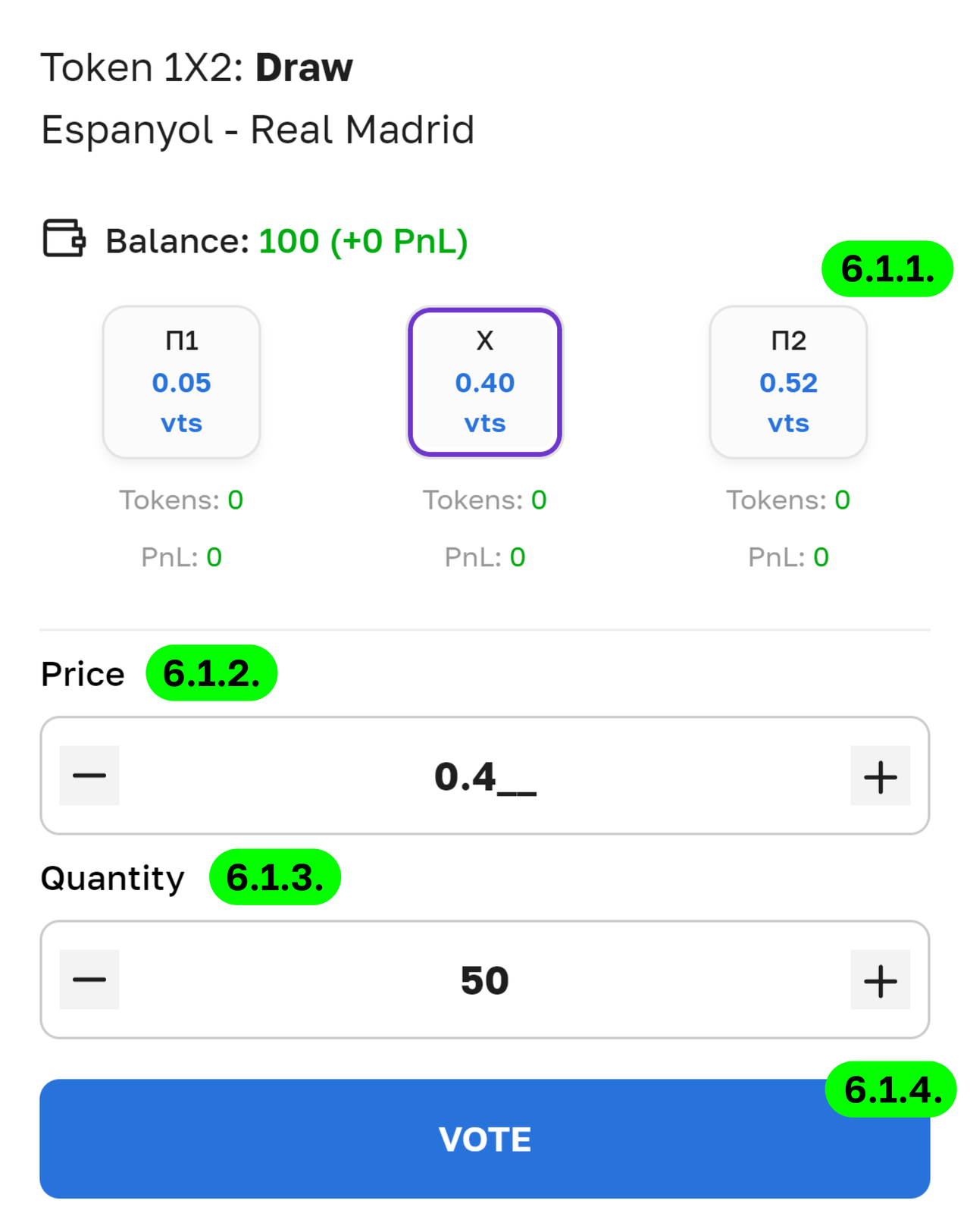
6.1. “Buy".By selecting this tab, you will win if, at the end of the event, there will be the result for which you have tokens.The algorithm is as follows:
6.1.1. Select the outcome (P1, X, P2) for which you want to buy tokens
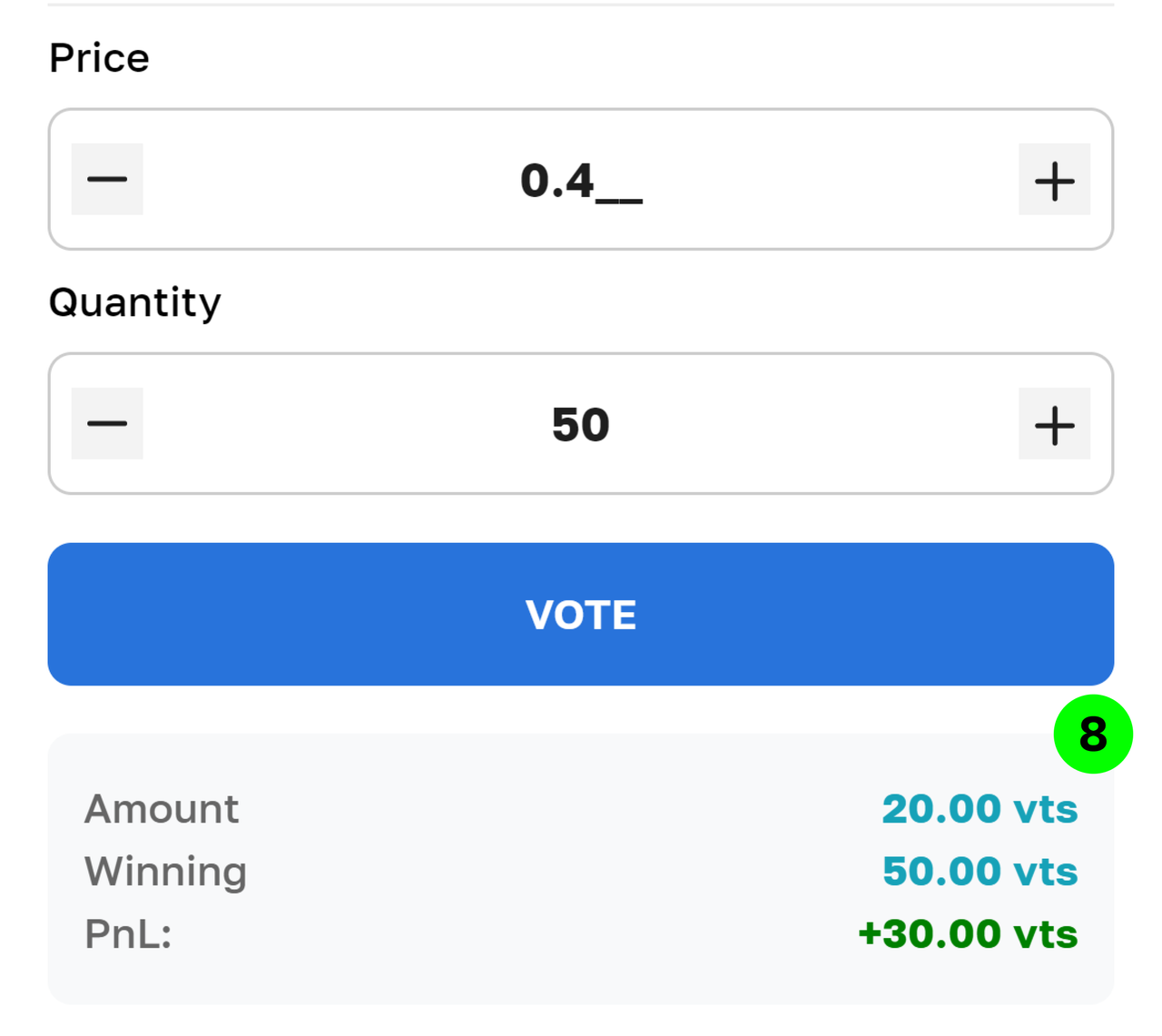
6.1.2. In the field “Price” , enter the cost of one token
6.1.3. In the field "Quantity” , enter the number of tokens you want to buy.
6.1.4. Click "VOTE"
A confirmation window will appear with information about the created order, click "BUY".
6.2. “Sell".
Select this tab if you want to sell the tokens that you bought earlier. By selling tokens, you either minimize the loss or lock in the profit.The algorithm is as follows:
6.2.1. Choose the outcome for which you have tokens and you want to sell them.
6.2.2. In the field “Price”, enter the cost of one token
6.2.3. In the field "Quantity”, enter the number of tokens you want to sell.
6.2.4. Click "VOTE"A confirmation window will appear with information about the created order, click "SELL".
7. Completion of bid creation.
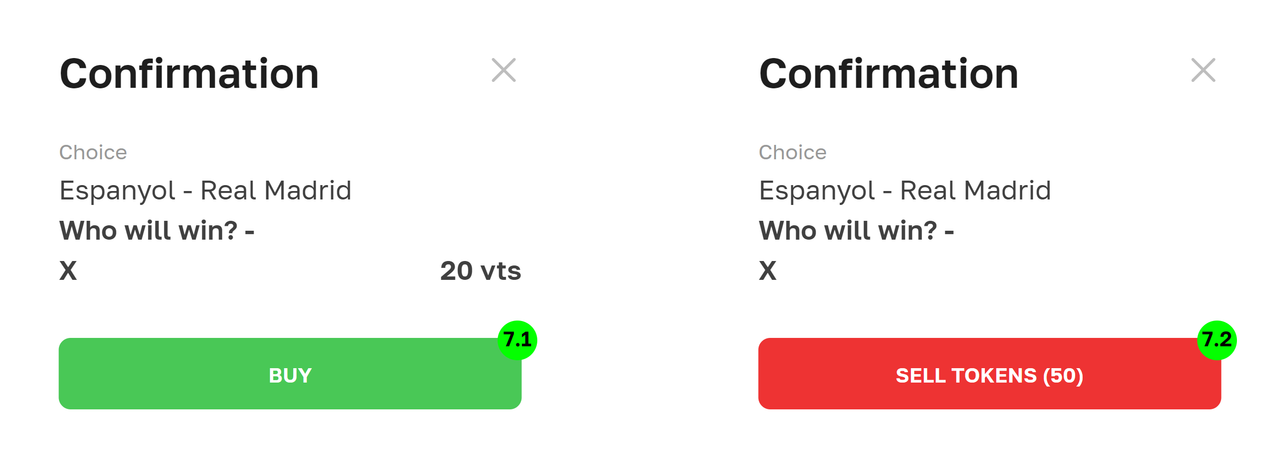
When you click on the button “VOTE” , a window with information about the bid appears.Click on the confirmation button, depending on the selected tab.:
7.1. “BUY”
7.2. “SELL TOKENS”You have placed a bet, other users will be able to respond to you and then you will have a deal with them.
8. Under the button "VOTE" there is information about the created order: the "Amount" of the bet, the possible "Win" and "PnL".
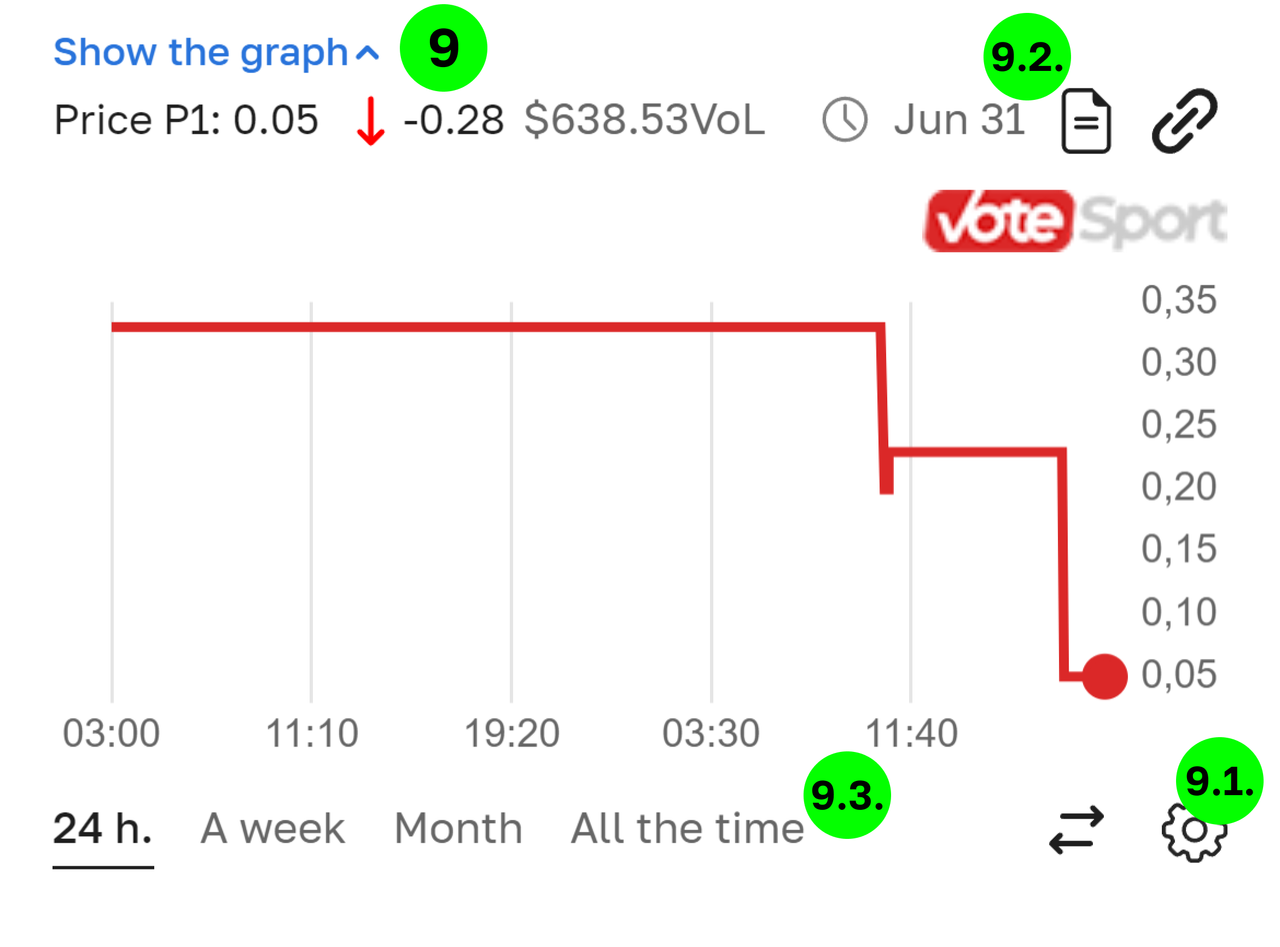
9. Schedule. By clicking on the link, you can expand/collapse the graph of changes in token prices for all outcomes.
9.1. By clicking on the gear under the graph, you can adjust its appearance. Display price changes for one, two, or all 3 outcomes. To set up the grid.
9.2. There is an information panel above the chart, where by default the last price for outcome N1 is displayed, the change in this price for the selected period.
9.3. The period is selected on the lower panel.
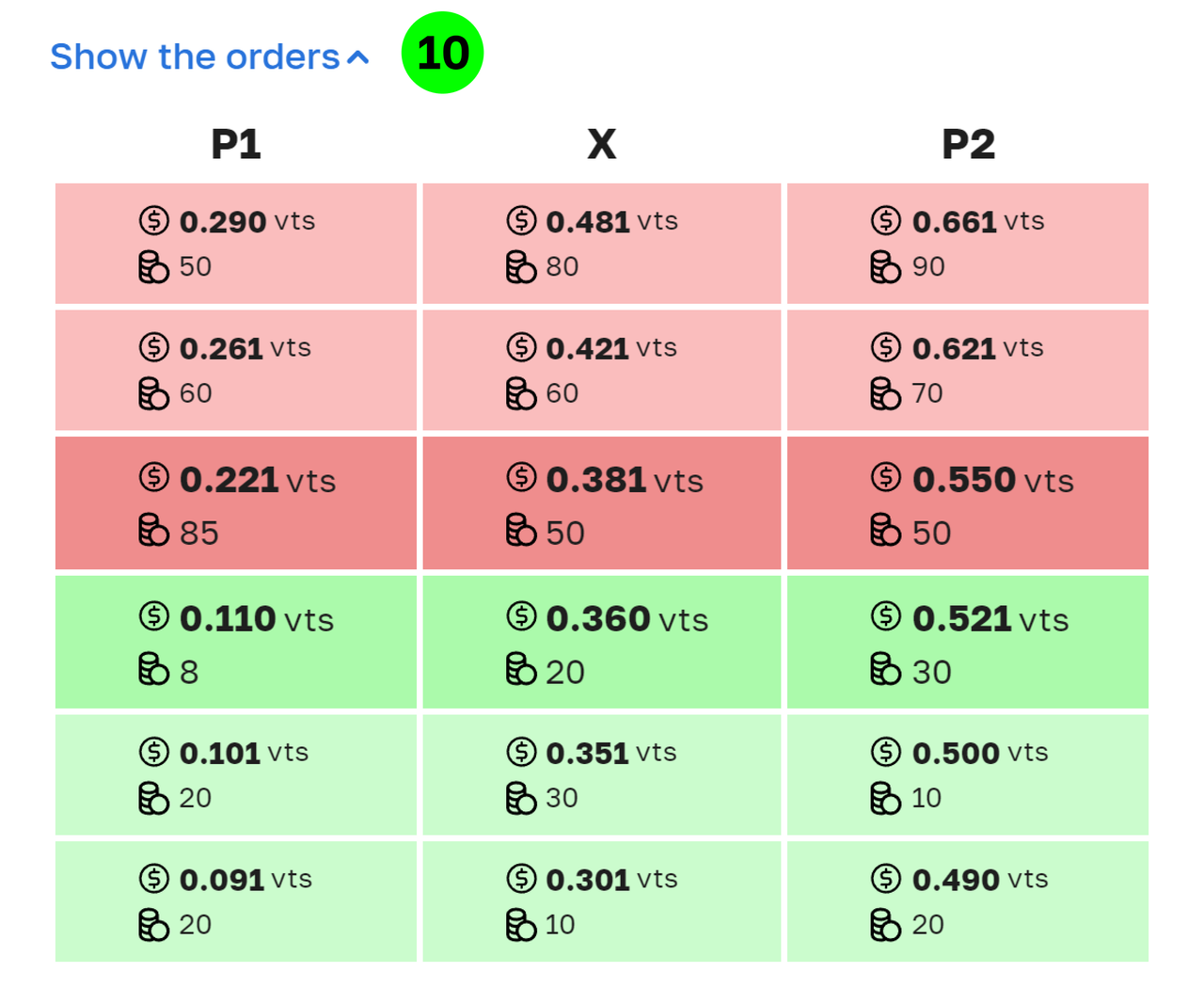
10. Show the orders. There is a glass under the chart with orders from other users (the “order book").When you create an order, it goes into this glass. If there is already an order from another user in the glass that will allow you to make a deal, it will be completed. Funds will be debited from your balance, and your order will disappear from the glass.
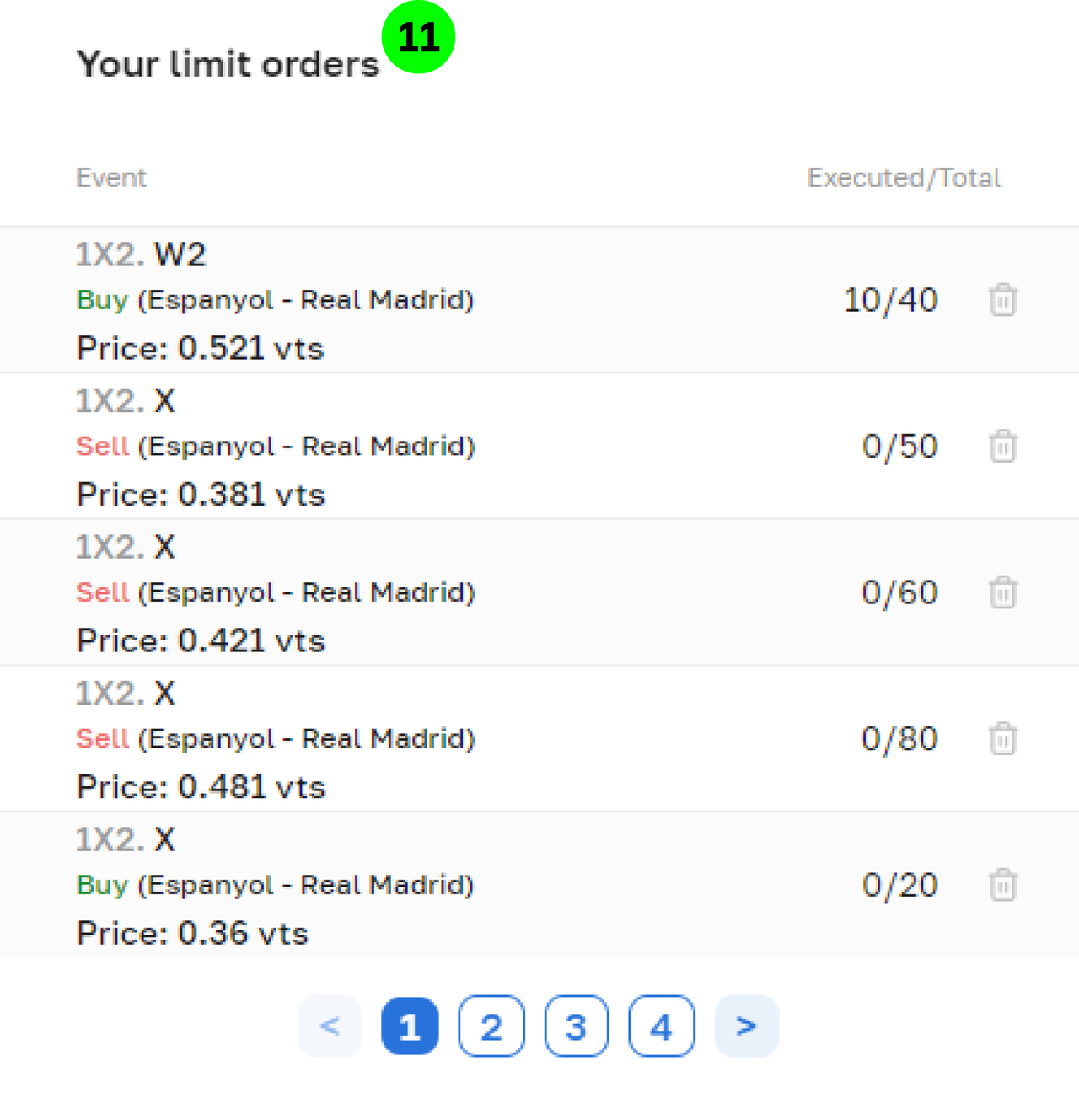
11. Your limit orders. Your created limit orders are also displayed in the “Your Limit Orders” section. Here you can check which orders you have created and to what extent they have been executed. Until they are fully executed, you can cancel them for an unfilled amount. The completed and declared volume are shown separated by slashes. For example, 10/20 means that you have created an order with 20 tokens, and at the moment it has been executed for 10 tokens. Without waiting for this execution, you can cancel this remaining amount, and the money will be returned to the available balance.